Posts

Anti-Cockroach Movement

Image
KILL THE COCKROACH. PROTECT YOUR FAMILY. Are you dealing with deadly cockroaches and want a solution that is effective at battling them out. Get answers to help solve your problems in home with a variety of cockroach kill  products. Early detection of cockroaches before an infestation can occur. https://killcockroach.in/

Post 13 : Work Out Some nice Programming Challange

Problem 1.   Input a range from user and print all the number that are palindromes in that range. Hint: Use the logic of reversing the number. Input: 1 to 22 Output: 11, 22. Problem 2. Write a Program to Produce the Following Output                         1                 2                3         4                5                6 7                8                9                10 Problem 3. The probability that an individual telephone call will last less than t minutes can be approximated by the exponential probability function P(a call < t minutes) =1-  e^{-t/a} where $a$ is the aver...

POST 12: Summary for Installing Mac OS X directly on Laptops/PCs other then Apple's laptops&pc

                                        So here is the summary of post number 1 to 11 Find the downloads provided in POST 1  [TransMac;MultiBeast and ML2 .dmg] Make Bootable media[ie dual layer DVD or USB (atleast 8 GB)] Fire your Bootable media in the target system & boot from that media. If all goes fine then you are booting in Mac OS Mountain Lion 10.8.2 When Yor Hackintosh is installed in targetted system successfully then comes the time to make your Mac OS X boot from Hard Disk Drive in which it is Installed.It will be done using Software Multibeast..... Now you are loged in your Hackintosh , remove the bootable media and open Multibeast. Select basic settings including bootloader named chimera. Now select from dropdown box your targetted HardDisk Drive name and Click Install. If after some time , you get a window showing softwares installed Successfully, it means...

Post 11 : Useful Video/Snapshots to Install Mac OS

Image
                                                      Initial Video When You boot                                                                                                                                Setting up Mac OS X                                                                                  BIOS Settings:...

Post 10 : Setting Up Multibeast

Image
Multibeast is a collection of kext files that you'll need to install for your Hackintoshes to have sound, internet, a high resolution screen, and more. Different Hackintosh builds require different Multibeast setups, though most setups are very similar. Find out what Multibeast options you need to install . If you're just updating your Hackintosh from Mac OS X Lion, you don't have to reinstall Chimera in Multibeast after installing OS X Mountain Lion. Mac OS X treats Mountain Lion as just another update-- this generally means that the only things you have to reinstall in Multibeast are audio kexts and ethernet kexts. You might also have to reinstall miscellaneous kexts, such as TRIM Enabler (for SSDs) To run Multibeast in OS X Mountain Lion, you have to go the "Security" section of System Preferences in Mac OS X, go to the "General" section, and check "Anywhere" in the "Allow applications" section. After running Multibeast, you...

Post 9 : Installing Mountain Lion

Image
Once you've entered the OS X Mountain Lion installer, you will come up to a page that asks you for a "destination" for your Mountain Lion installation .Watch this Pic If you're installing Mountain Lion on a computer that has never been turned into a Hackintosh before (i.e. doesn't already have Snow Leopard or Lion installed), the hard drive selection box will be blank. We'll have to fix that. To do this, start up Disk Utility, which is located under the Utilities menu in the top bar.Watch this Pic You need to use Disk Utility to erase a hard drive partition so that OS X Mountain Lion can install itself on it. In the sidebar of Disk Utility, choose the hard drive partition where you want Mountain Lion installed, and erase it by using the "Erase" tab. You can also just erase the entire hard drive (this is the preferred solution if you don't plan to dual-boot Windows and Mac OS X from the same hard drive). In ...

Post 8 : Boot Into Mountain Lion 10.8.2

Plug in your ML2 usb drive in usb 2.0 port of your system(usb 3.0 don't always work) OR Insert your ML2 DVD media in DVD Drive. Restart Your System.If all goes well, your system will boot into ML2  instead of booting from normal hard drive. You will then be able to watch the Mac OS X menu. If you do not manage to reach the Mac OS X menu, check your motherboard's BIOS settings to make sure that the changes you made in  were properly applied. If they were, but you still cannot boot from ML2, go back to post on  (Creating bootable media if using  Mac or Windows)  and try again with a different USB drive or dual layer DVD. At the Mac OS X menu, select the name of your ML2 USB drive/DVD, by using the left/right arrow keys on your keyboard, and then press the enter key (or return key) to start the OS X Mountain Lion installer. In the worst case scenarios, instead of loading the Mac OS X installer, you may end up at a dark gray screen that tells you to rest...

Post 7: Setting System Parts

Unplug all USB-connected devices from your system before you begin the setup (don't unplug  your keyboard and mouse). A faulty external USB hard drive can cause your Hackintosh bootloader to give you EBIOS errors on startup. Open up your computer and unplug any extra internal hard drives that your computer has, besides the hard drive that you're installing OS X on. (Just unplug the hard drive SATA cables from your motherboard.) If possible, connect your monitor to the DVI port of your computer's graphics. The Mac OS X installer sometimes has problems with HDMI and VGA. NOTE: If you're installing Mac OS X on a computer that already has Windows installed, you may have to enable AHCI for Windows beforehand. Otherwise, Windows won't boot afterwards. Also, after installing Mac OS X, you should also sync your clock on Windows with Mac OS X 

Post 6 : Create ML2 Bootable DVD Media(on Windows)

Image
Follow this step if you're setting up ML2 on Windows . Insert your dual-layer DVD into Windows, and open Transmac. Click File -> Open Disk Image. In the Windows Explorer window that pops up, select your downloaded ML2 disk image(Will provide download link later )See picture Your ML2 disk image will pop up in the left sidebar of the TransMac window. Right-click on it, and click "Burn to CD/DVD". Then burn the disk image . See Picture - This process may take up to an hour (or more, depending on the speed of your DVD burner). Once TransMac finishes, you will have a fully bootable DVD version of the Mountain Lion installer.

Post 5: Creating ML2 Bootable USB Media (on Mac)

Image
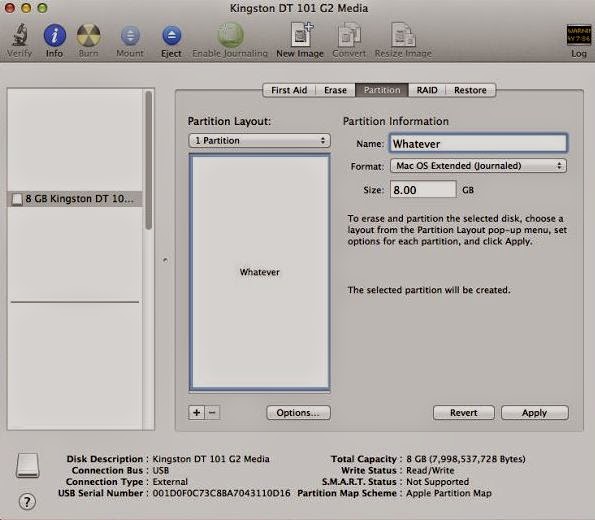
Follow this step if you're setting up ML2 on a Mac or existing Hackintosh. Plug your USB drive into Mac OS X, and open Disk Utility (located in the Utilities folder in the Applications folder). Select the USB drive in the sidebar of Disk Utility, go to the "Partition" tab of Disk Utility, and create a new partition layout with 1 partition. Set the format to "Mac OS Extended (Journaled)". Name the new partition anything you want. Click the "Options" button before applying your new partition layout. It should be set to "Master Boot Record" by default. Keep the same.Now click Apply. See Image     Now start Transmac , In the left pane, right click the USB Drive and select  Restore with Disk Image Point to your .dmg file and click Open. This will write all of the contents of the ML2 disk image onto your USB drive. It will take 15 minutes to an hour, depending on the quality of your USB drive Once done with tra...

Post 4 : Making Booting Media

You will have to write ML2 onto a USB drive or dual layer DVD, and boot your computer from ML2 media  to install Mac OS X .  * If you are setting up ML2 from Windows, you have to write it onto a dual-layer DVD or Bluray disc (normal DVDs don't work because ML2 is slightly too large). However, if you're setting up ML2 from Mac OS X, you can use a 8 GB or larger USB drive instead of a dual-layer DVD. You will need to erase all of the files on your USB drive beforehand, so make sure to back up its contents first. You can reuse this USB drive for normal stuff after you finish installing Mountain Lion. * You can not write ML2 onto a USB drive from a Windows computer.   TransMac :  If you're using a Windows computer to set up ML2, you need to use TransMac to  write ("burn") the ML2 disk image file onto your dual-layer DVD or Bluray disc .   Multibeast :  Multibeast is a collection of kext files that your Hackintosh will need to run ...

Post 3: Before Installation

- BIOS settings: - Set your BIOS to its default settings. - Execute Disable bit: Enabled - XD (if exists): Enabled - Limit CPUID Max: Disabled - Set all cores of the CPU active/enabled. - Virtualization (if exists): Enabled or Disabled, try it. - Hyper-threading: Enabled or Disabled, try it. - HPET (High Precision Event Timer/PCH): Enabled - SATA Mode: AHCI - Set all the Overclock/Performance/Turbo etc. values to Auto. - Set the UEFI mode settings (if exists) to compatible mode Boot Device - If you're using an ML2 USB drive , change the boot device of your computer so that "USB-HDD" is first. If you're using an ML2 DVD , change "CDROM" to first. You need to do this for ML2 to boot. After you finish installing Mac OS X, you should change this setting back to default, so that "Hard Disk" is the first boot device (this optional, but it will speed up your boot times) HPET - Change this to 64-bit SATA Control Mode (your BIOS mi...

Post 2: Hardware Compatibility and Requirements

You will want to know about the details of your computer before attempting to install this system . To get your hardware details (Vendor IDs, Device IDs), you can - Fire up a Linux Live CD and boot from it (ie. Parted Magic, Ubuntu Live CD). Type "lspci -nn" in terminal, press enter and take notes. - Boot from ML2 media, open terminal, type "lspci -nn", press enter and take notes. - Get/install Everest Ultimate Edition on Windows and use it to export the information. Check your hardware details and do the comparing with the hardware support list below. - Motherboard - Simply, Intel chipsets from 945G to C606 are supported. Common chips are 945, 965, 975, P35, P43, P45, P55, G31, G41, G43, X58, H61, HM65, HM67, H67, P67, Z68, Z77, X79, C602 and C606. - Besides the main chipset model, a motherboard has many components. Every component itself may or may not be compatible and even may be problematic for Mountain Lion. Also, BIOS of the motherboard may b...

Post 1: Requirements To Install Mac OS x on non Mac system

1) A dual layer DVD[if  you want to make it bootable using windows] 2) An 8 GB Pendrive[ if  you want to make it bootable using mac ] 3) 2 GB Ram on your system[1 gb may also work, try yourself] 4)60 GB free space on your system[ you can make a seperate drive also,preferably if yo want to work on your Mac OS x consistently ] 5)Core 2 duo processors or heigher for efficient performance 6)Some 5 GB Downloads[will provide link later] 7)If installed on seprate drive , you can also boot into your already installed  other OS, you have to choose option while booting everytime 8)If you are logged in to your Mac OS x, your wifi and lan port may not work , so you will not be able to connect with Internet.While they will work well in already  installed other OS. 9) In Order to connect with Internet You have to use a dongle or you can also use mobile tethring feature on your mobile if present{data cable connection b/w mobile and system's usb} 10) Leave any Fea...